How to use TVUP Smart Analytics
Smart Analytics shows how TV is watched on your platform: how many people use it, for how long, which channels and shows they choose and on which devices. This guide explains every screen and how to get the most out of it, with no technical knowledge needed.
- Buttons and options appear in this guide exactly as you'll see them on screen, like this: Last 7 days.
- The screenshots use sample data: the figures don't belong to any real operator.
1Logging in and out
Log in with the same username and password you use in the TVUP content manager. If your account doesn't have access to Smart Analytics, the screen will tell you: request access from your TVUP contact.
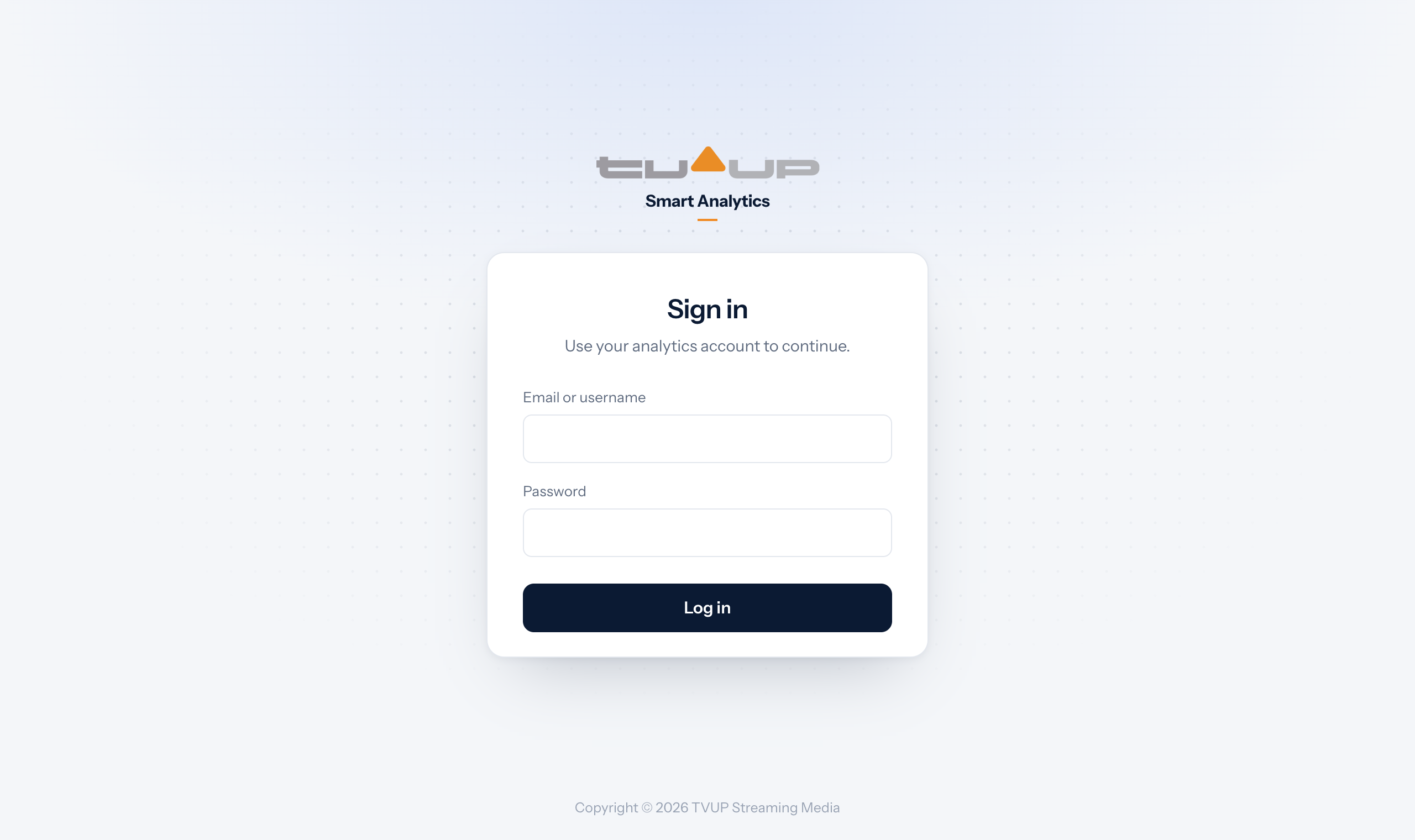
- Your session stays open even if you close the tab or restart the browser, until it expires or you log out. If it expires while you're working, you'll see Your session has expired and a Log in again button.
- To log out, click the arrow icon next to your name, at the bottom of the menu. On a phone, the Log out button is at the end of every screen.
2The screen at a glance
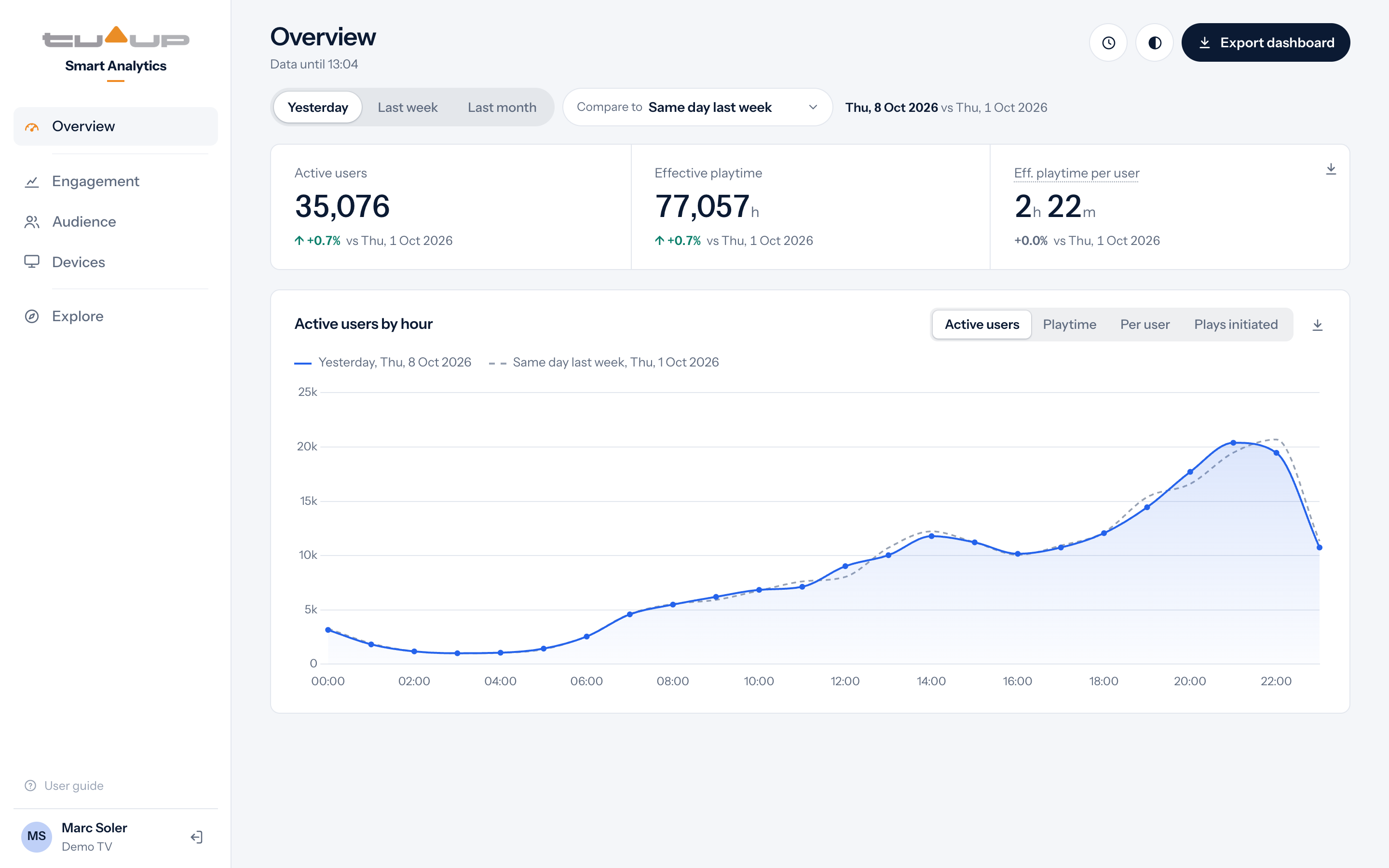
Every section follows the same layout: the menu on the left, the title and filters at the top, and the data below in blocks (KPIs, charts and tables).
 1234
567
1234
567 - 1Menu. Switches section: Overview, Engagement, Audience, Devices and Explore. On phones and tablets, the menu becomes a bar at the bottom.
- 2Title and data freshness. Data until 08:47 is the latest minute with processed data. New data takes one or two minutes to arrive.
- 3Filters. The period you're looking at and how it's grouped over time. See Choosing the period.
- 4Tools. The clock (time zone), light or dark mode, and Export dashboard (download the data on screen).
- 5KPIs. The key figures of the period, with their change when there's a comparison.
- 6Charts and tables. Each block has its title and a button to download its data.
- 7Your user, your operator and the log-out button. Just above, User guide opens this guide (on a phone, at the end of every screen).
3Choosing the period
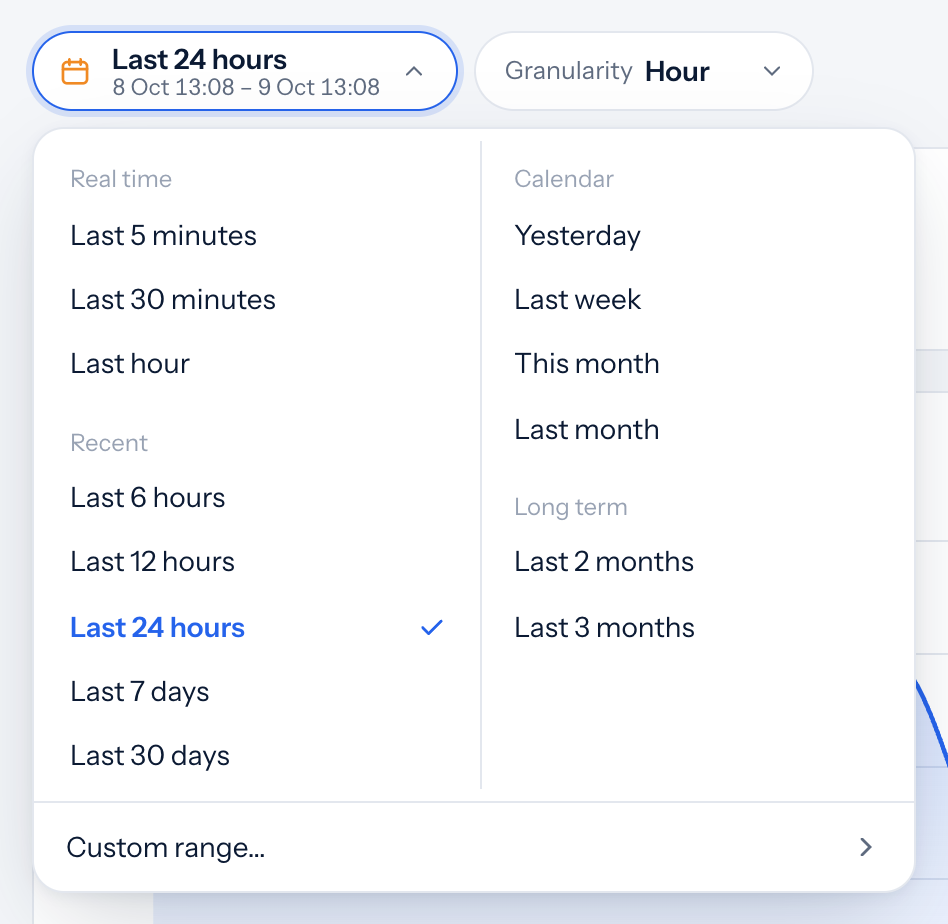
Click the date button (with the calendar icon) to choose the period you see. Under its name you'll find the exact dates and times it covers.
Shortcuts
- Real time: the last 5 or 30 minutes and the last hour, to follow what's happening right now.
- Recent: the last 6, 12 or 24 hours and the last 7 or 30 days, counting back from this moment.
- Calendar: whole days, weeks and months: Yesterday, Last week (Monday to Sunday), This month, Last month.
- Long term: the last 2 or 3 months.
Only dates with data are offered: data starts on 1 June 2026.
A custom period
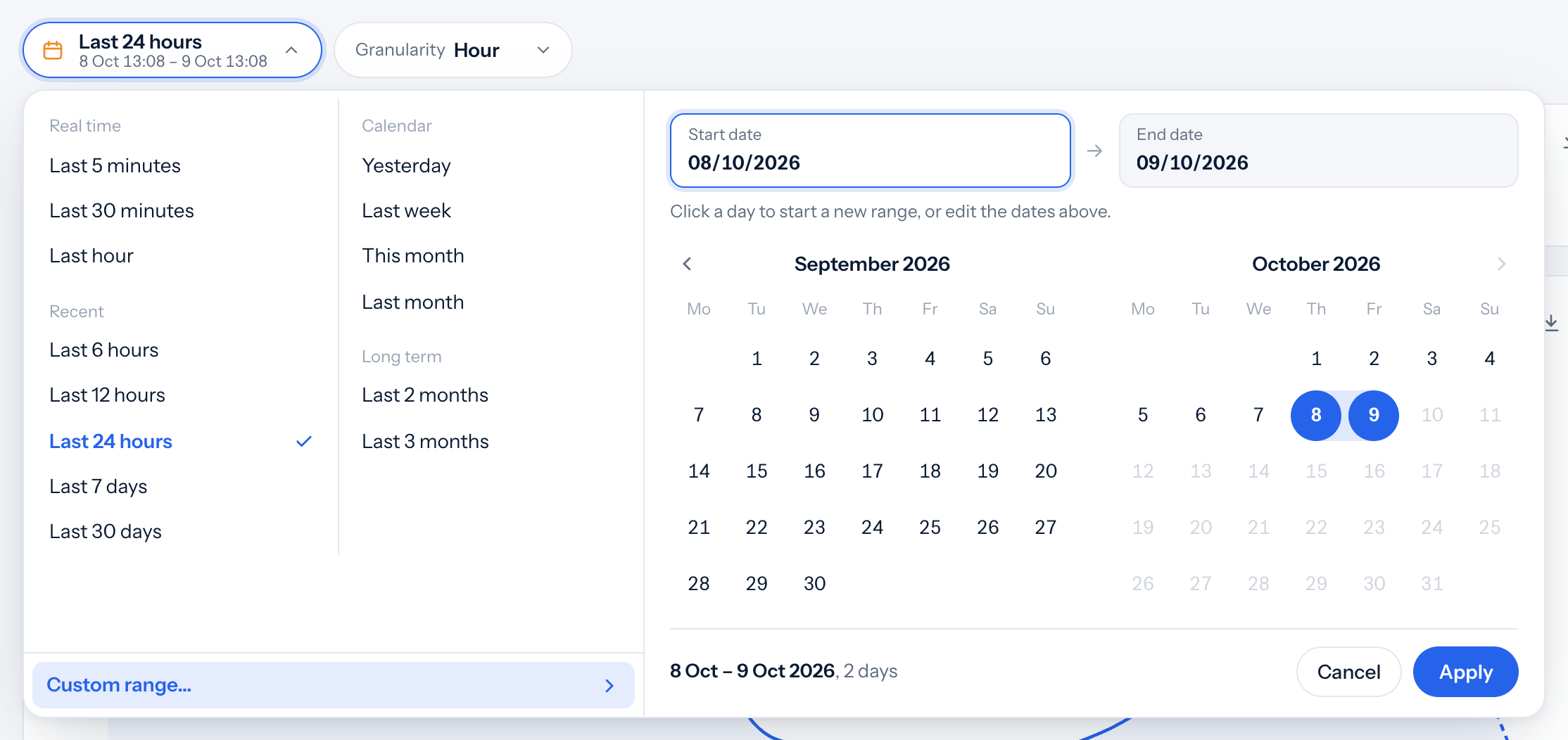
Click Custom range… to open a calendar. Click the first day and then the last (or type the dates as dd/mm/yyyy) and click Apply. The last three custom periods you used appear in the list, to go back to them in one click.
Granularity: by minute, hour, day, week or month
Next to the dates, Granularity sets how the data in evolution charts is grouped: one bar or point per hour, per day, and so on. It only offers the options that make sense for the chosen period (for example, by hour only up to 8 days; longer periods go by day, week or month).
- When you switch section, the period goes back to Last 24 hours. Each section starts with its default view.
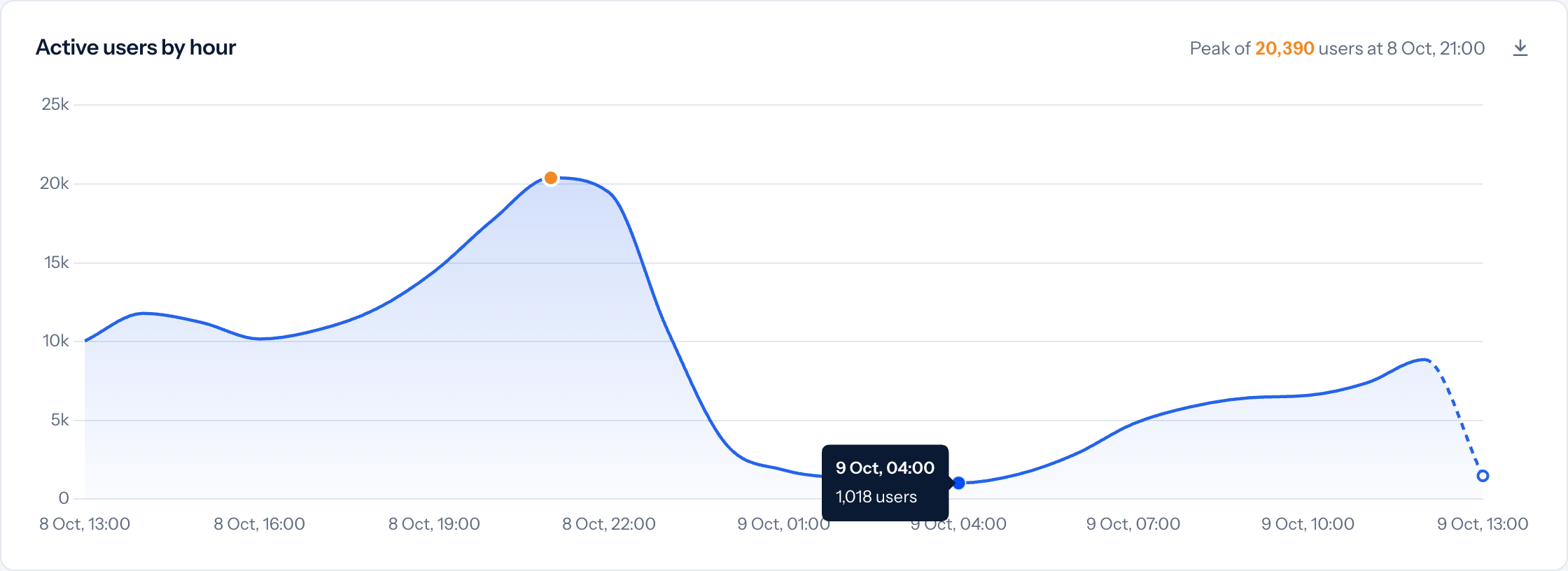
- The last stretch of a period that ends now is lighter or dashed: that hour (or day) isn't over yet, so its figure will still grow. Hovering over it says in progress.
4Reading charts and tables
- Hover over a chart (or tap it on a phone) to see the exact value of each point or slice.
- The orange dot marks the peak of the period, and the chart's title says when it was.
- The dashed grey line is the period you're comparing with, when there's a comparison.
- In donut charts, hovering shows each slice's share; the centre shows the total.
Tables and rankings
- Sort by clicking any column title; click again to reverse the order. The # column always shows the real position by playtime, even when you sort by another column.
- The blue bar behind each figure compares it with the first one, which is a stronger blue and in bold.
- If a name doesn't fit and is cut with "…", hover over it to read it in full.
- ↓ Show all shows the rest of the rows inside the same block, with its own scroll bar.
When there's no figure
- A dash (—) in a KPI means the figure isn't available, not that it's zero.
- No data for this period: there's no activity in that period. Try another one.
- If something fails to load, you'll see a message with a Retry button. If it takes longer than usual (long periods), Still loading… appears: wait a few seconds.
5Overview: the summary
The first screen. It sums up a closed period and compares it with another, to answer "how did yesterday go?" or "how was the week?" at a glance.
- Period: Yesterday (the default), Last week or Last month.
- Compare to: the period it's compared with. By default, yesterday is compared with the same day last week (a Friday with another Friday), the week with the previous week and the month with the previous month. You can also choose the previous day, No comparison or the average of the periods before: Avg. of last 4 Fridays (the same weekday), Avg. of last 4 weeks or Avg. of last 3 months. The average shows whether a period is normal or out of the ordinary, without depending on a single day that may have been unusual; it takes a little longer to load. The dates are shown on the right (for an average, in the chart's legend).
- KPIs: active users (Active users), effective playtime and average playtime per user who watched something. In Last week and Last month, the average becomes Daily eff. playtime per user, the playtime of an average day per user who watched something (so a week or a month reads on the same scale as a single day, and as Yesterday), and a fourth one is added, Active days per user: on how many days of the period each user came in, on average (for example, 2.3 days in a week). Under each one, the change in %: green if it goes up, red if it goes down. Hover over the name of the average or of the active days to see how they're worked out, with the period's own figures. Plays initiated are in the trend chart.
- Trend chart: the evolution of the period (by hour for Yesterday, by day for week and month). The buttons at the top right choose the metric: Active users, Playtime, Per user or Plays initiated. The dashed line is the period compared.

6Engagement: usage and loyalty
How many people use the service, how much they use it, and with which plans and devices. It follows the date picker and the granularity.
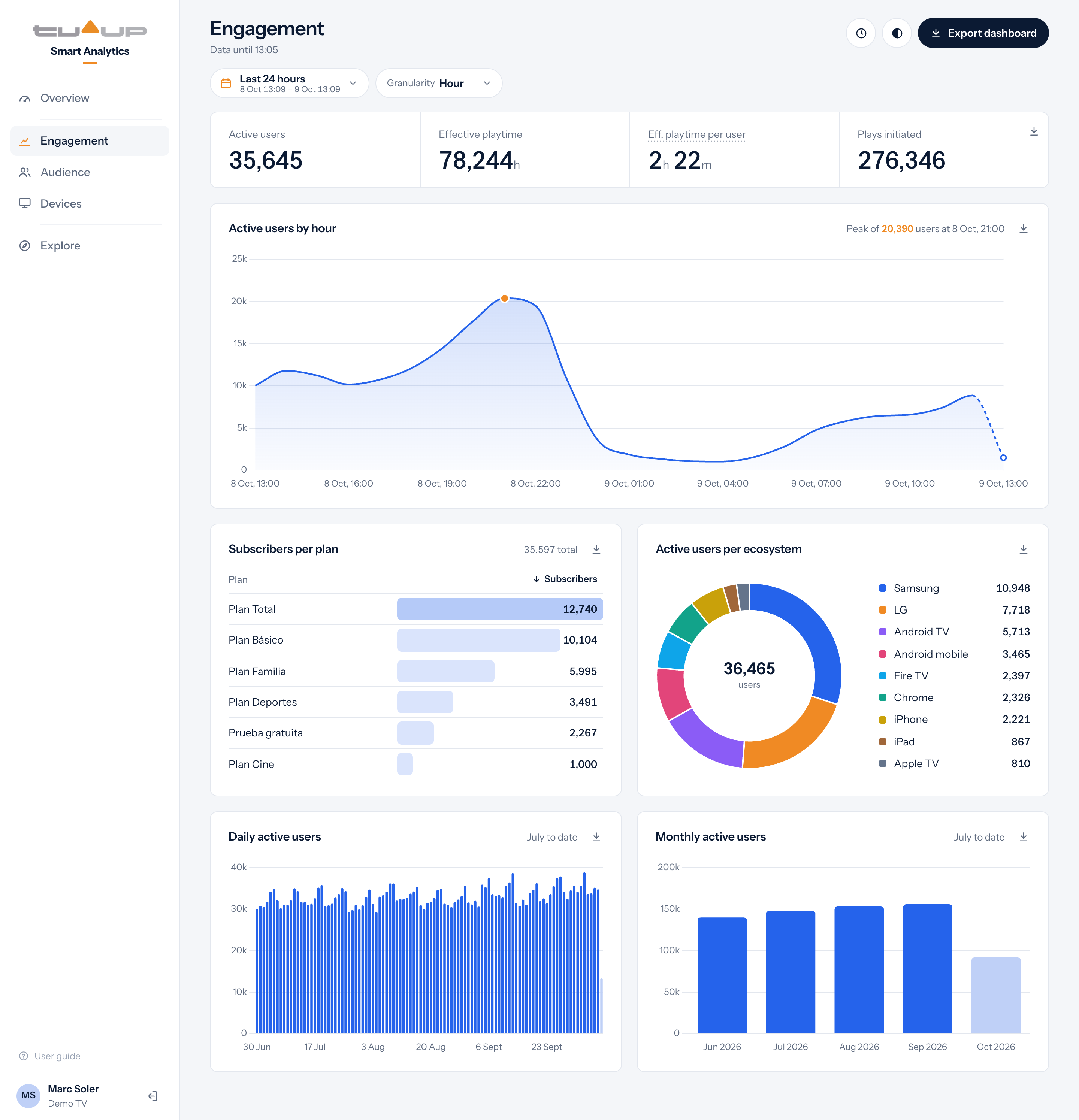
- KPIs: active users, effective playtime, average playtime per user who watched something and plays initiated in the period, as in Overview.
- Active users by hour (or by day, week…): how many different people used the service in each stretch, with the period's peak in orange.
- Subscribers per plan: active users on each subscription plan, from most to fewest.
- Active users per ecosystem: active users by type of device or app (Samsung, LG, Android TV, iPhone…).
- Daily active users and Monthly active users: users of each day and each month since July 2026, whatever the period chosen above. The current day and month are lighter because they aren't over yet.
Someone who watches on the TV and also on their phone counts once in each ecosystem, but only once in the total of active users. That's why the centre of the ecosystem chart is usually a little higher than Active users.
7Audience: channels and shows
What's being watched: the ranking of channels, shows and episodes by playtime.
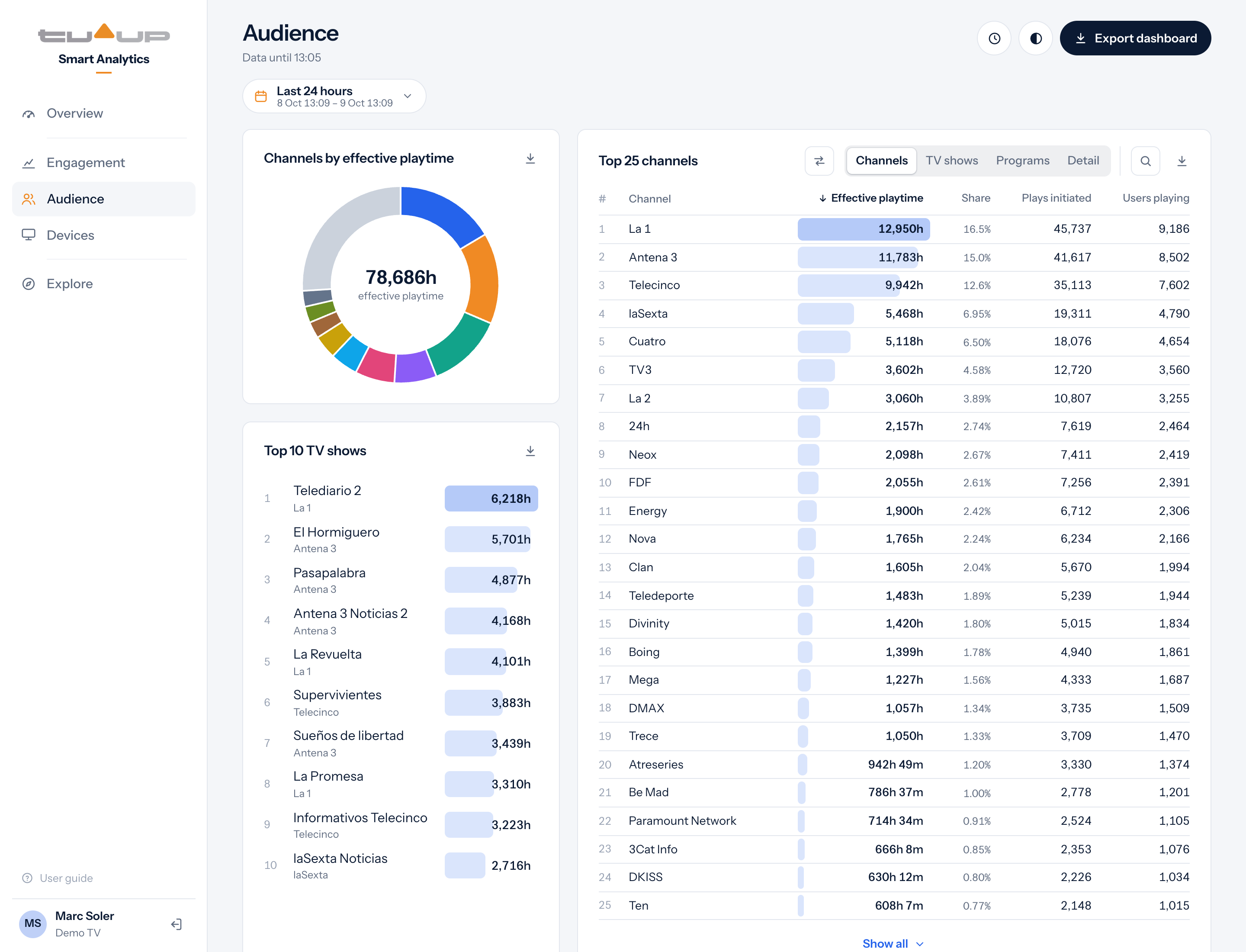
- Channels by effective playtime: how playtime splits among the 10 most watched channels; the rest are grouped in "Other channels". Hover over a slice to see its share.
- Top 10 TV shows: the most watched shows, with the channel where they're watched most.
- Top 25: the main ranking, on the right. The selector above it chooses what is ranked:
| Tab | What it shows |
|---|---|
| Channels | Each channel, with its playtime, its share of the total (Share), the plays that started (Plays initiated) and the people who watched it (Users playing). |
| TV shows | Each show with all its episodes added up (for example, "El Hormiguero"). |
| Programs | Each episode on its own, as it appears in the TV guide (for example, "Telediario 2 - 2 oct"). |
| Detail | Each show split by channel, to see where each one is watched. |
Comparing the channel ranking with another period
On the Channels tab, the button with two arrows (⇄) compares the ranking with another period: the previous one, the same time yesterday or last week… Each option shows its dates.
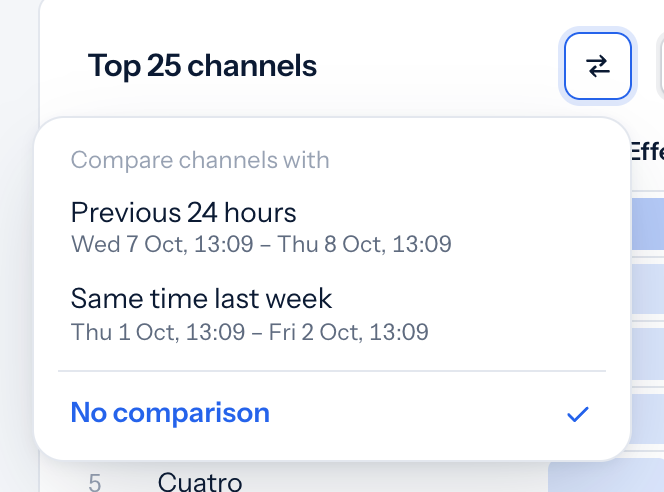
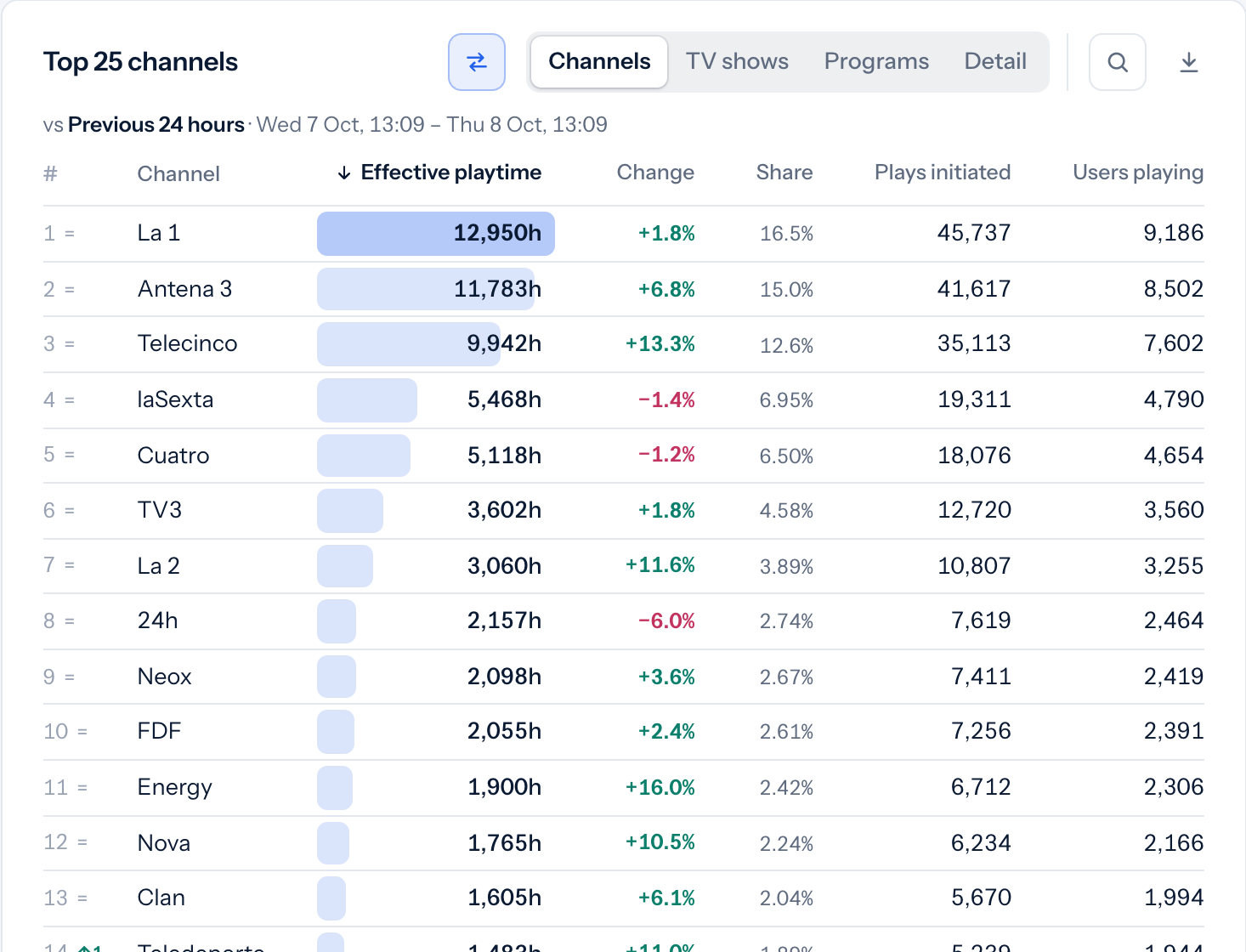
The table adds a Change column (change in playtime) and, next to the position, how many places each channel went up (↑) or down (↓); = if it stayed and new if it wasn't there before.
Searching the ranking
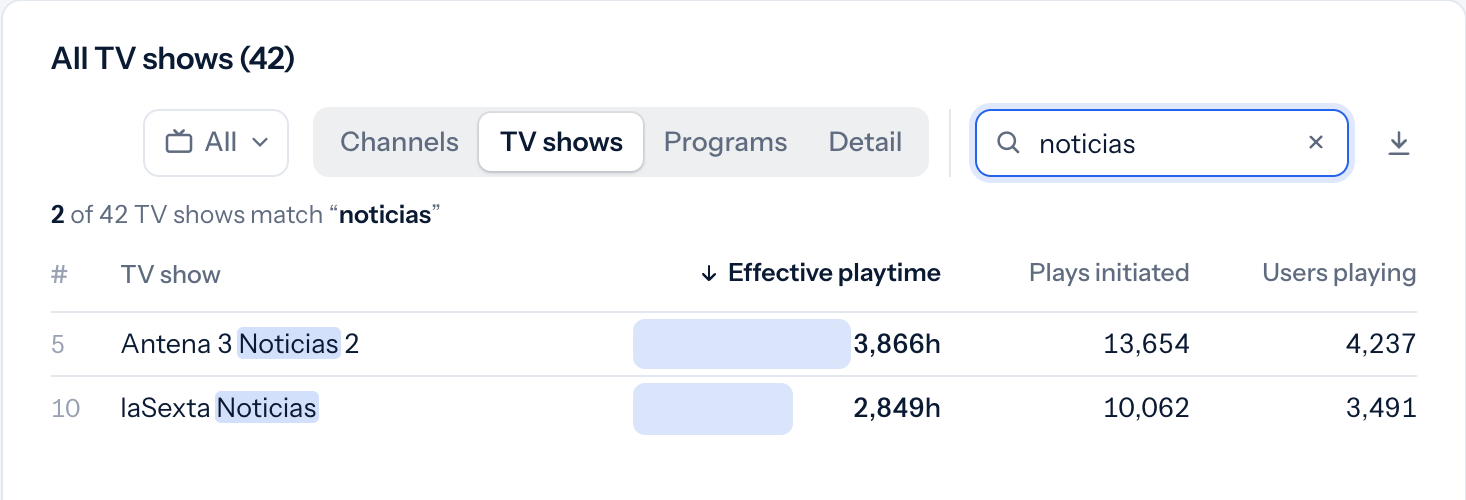
The magnifying glass opens a search box: type part of a name and you'll see every match in the whole ranking, not just the Top 25, with its real position. It ignores capitals and accents. To clear the search, click the X or press Escape.
Seeing the shows of a single channel
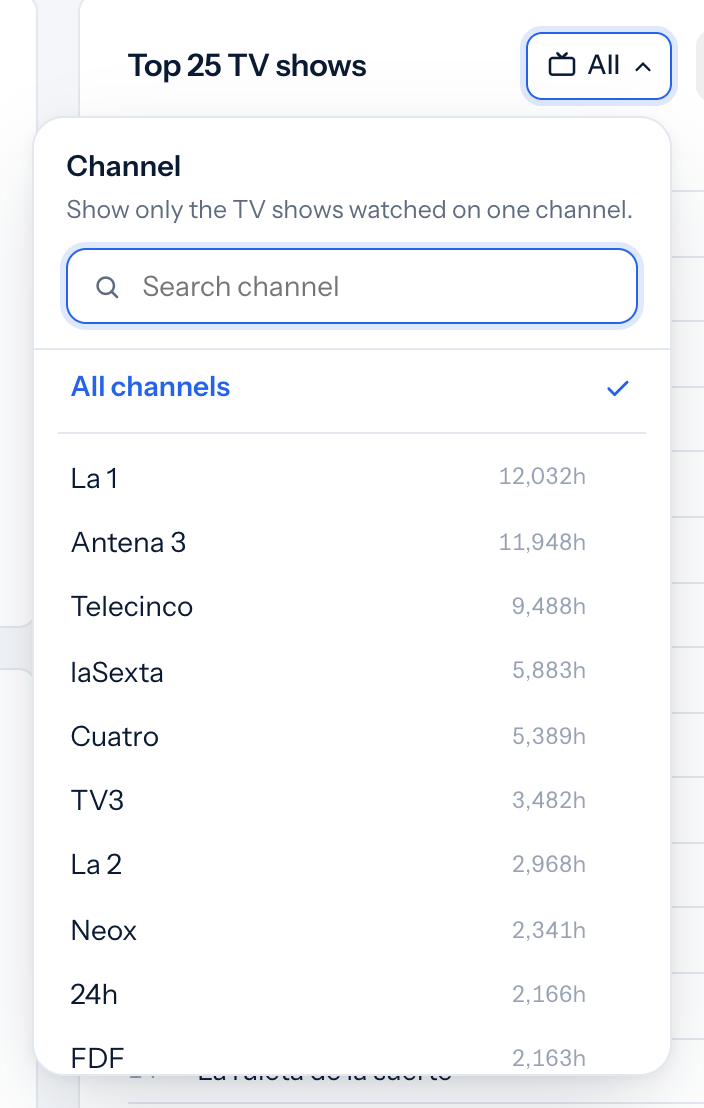
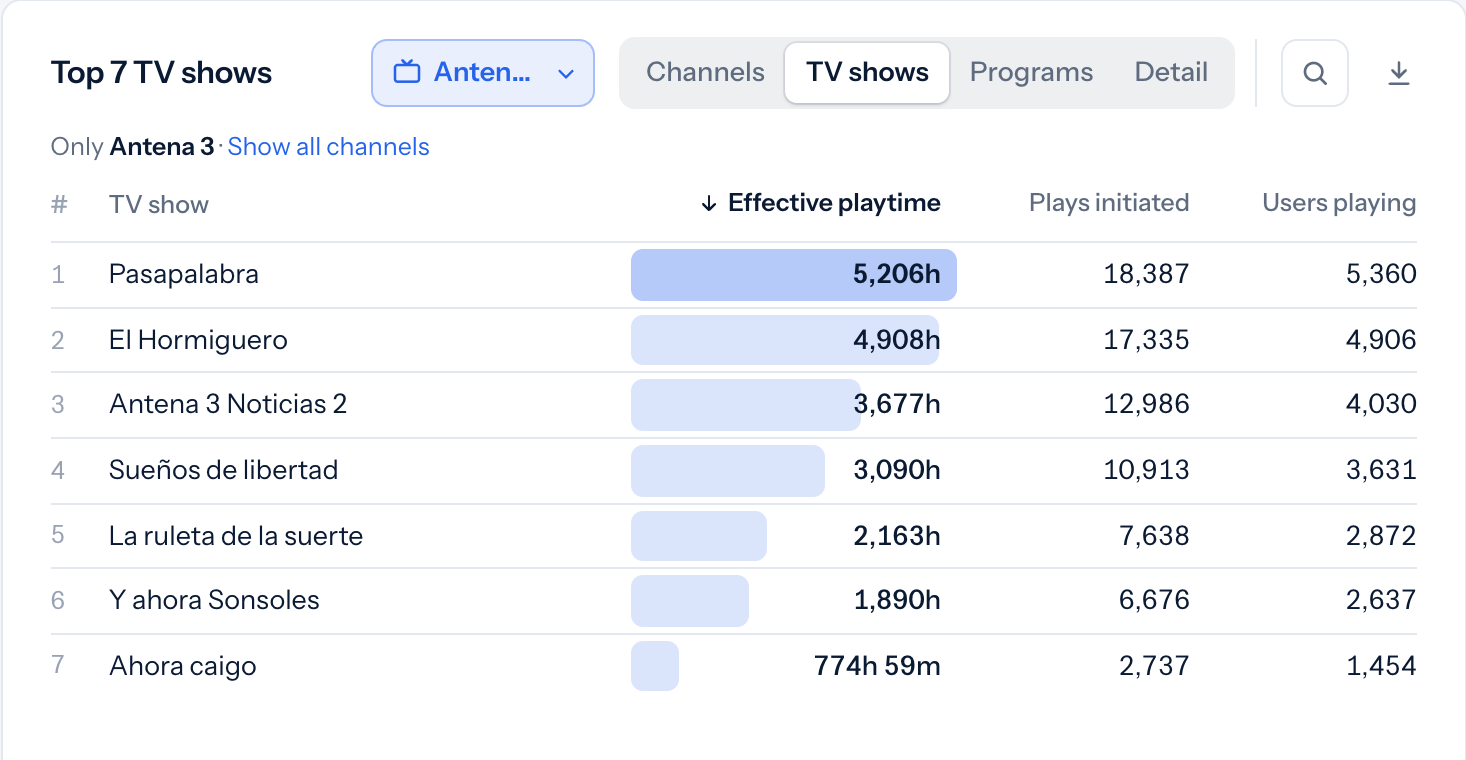
On the TV shows and Programs tabs, the button with the TV icon filters the ranking to one channel: you'll see which shows are the most watched on that channel. Show all channels goes back to the full ranking.
A channel's panel
Click a channel in the Top 25 (Channels tab) or a slice of the channel chart to open its panel on the right:
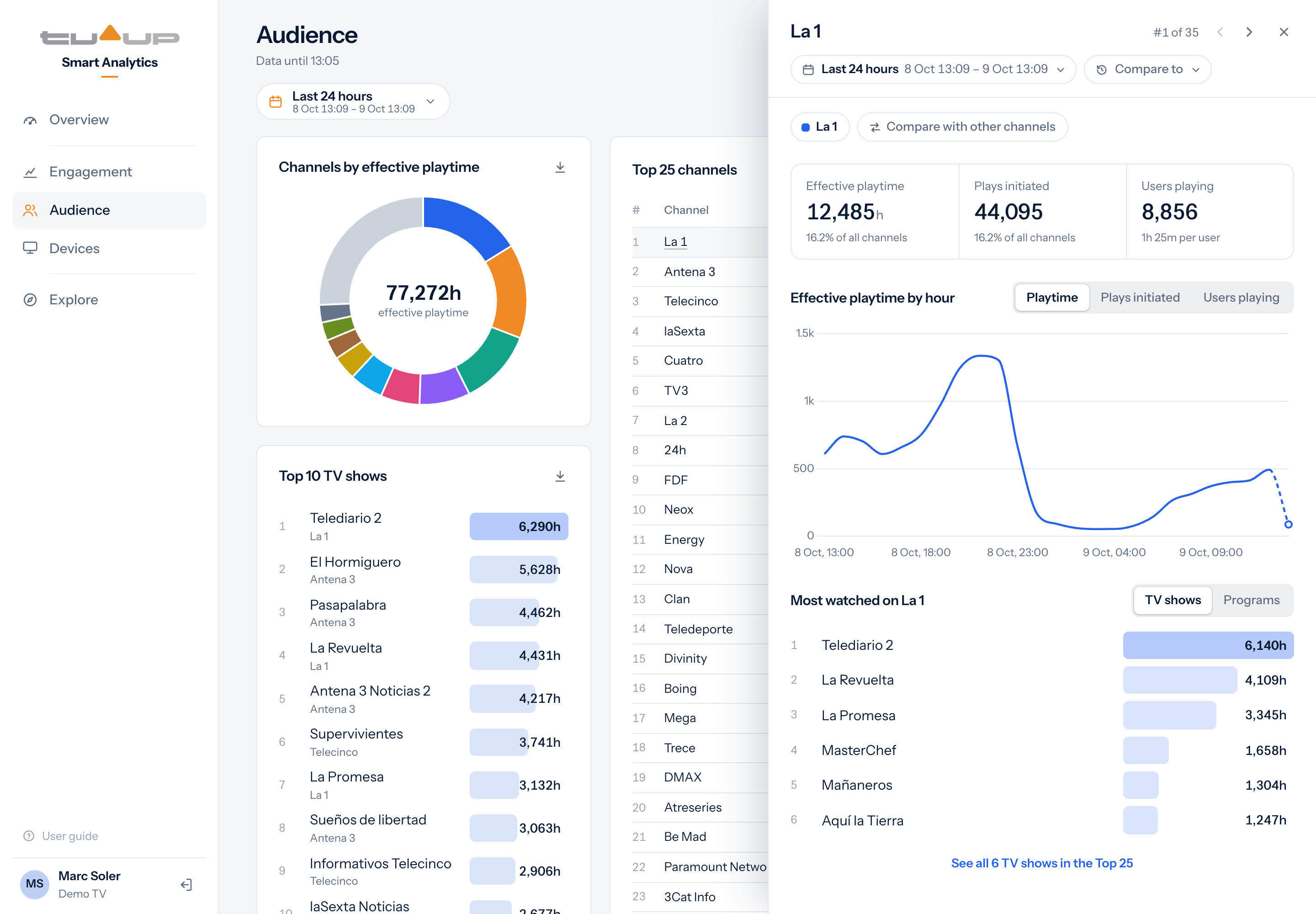
- At the top: its position (#1 of 35), with arrows to move to the previous or next channel in the ranking.
- KPIs: playtime and plays initiated (with their share of all channels) and the people who watched it, Users playing (with the average time per person).
- Evolution of the channel over the period: playtime, plays initiated or people who watched it.
- Most watched on…: its most watched shows or episodes. See all … in the Top 25 closes the panel and filters the ranking by that channel.
- Its own dates: the panel's date button shows the channel in another period without changing the rest of the screen. Back to dashboard dates returns to the general dates.
- Compare to: compares the channel with another period: the change in each KPI, the change in position and the other period as a grey line in the evolution.
Comparing several channels: Compare with other channels adds up to 4 more channels. The panel widens, the KPIs become a table with one row per channel and the evolution shows one line per channel, each in its own colour.
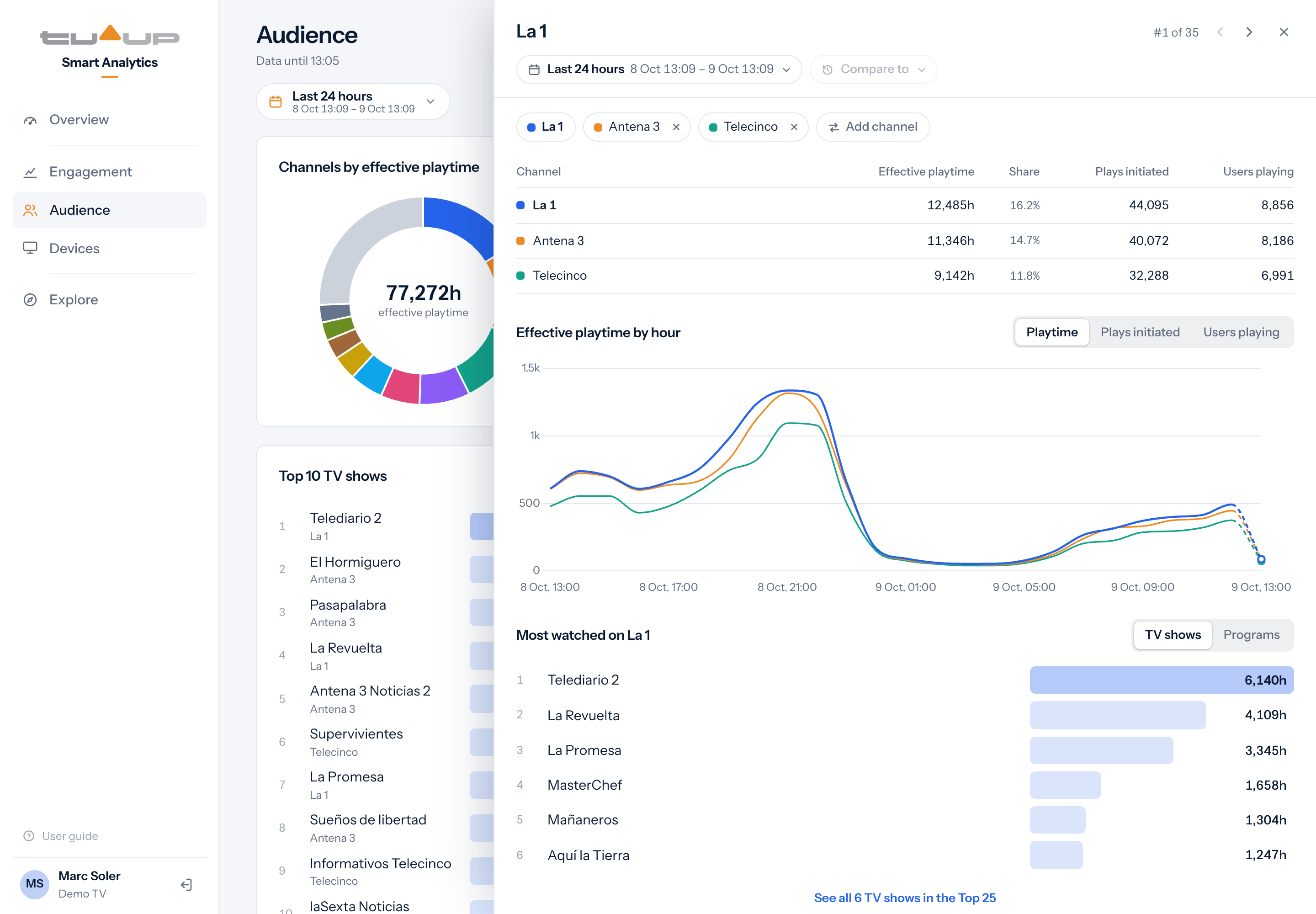
While you compare channels, the comparison with another period is paused; it comes back when only one channel is left. The panel closes with the X, the Escape key or a click outside it.
8Devices
Which devices the service is watched on.
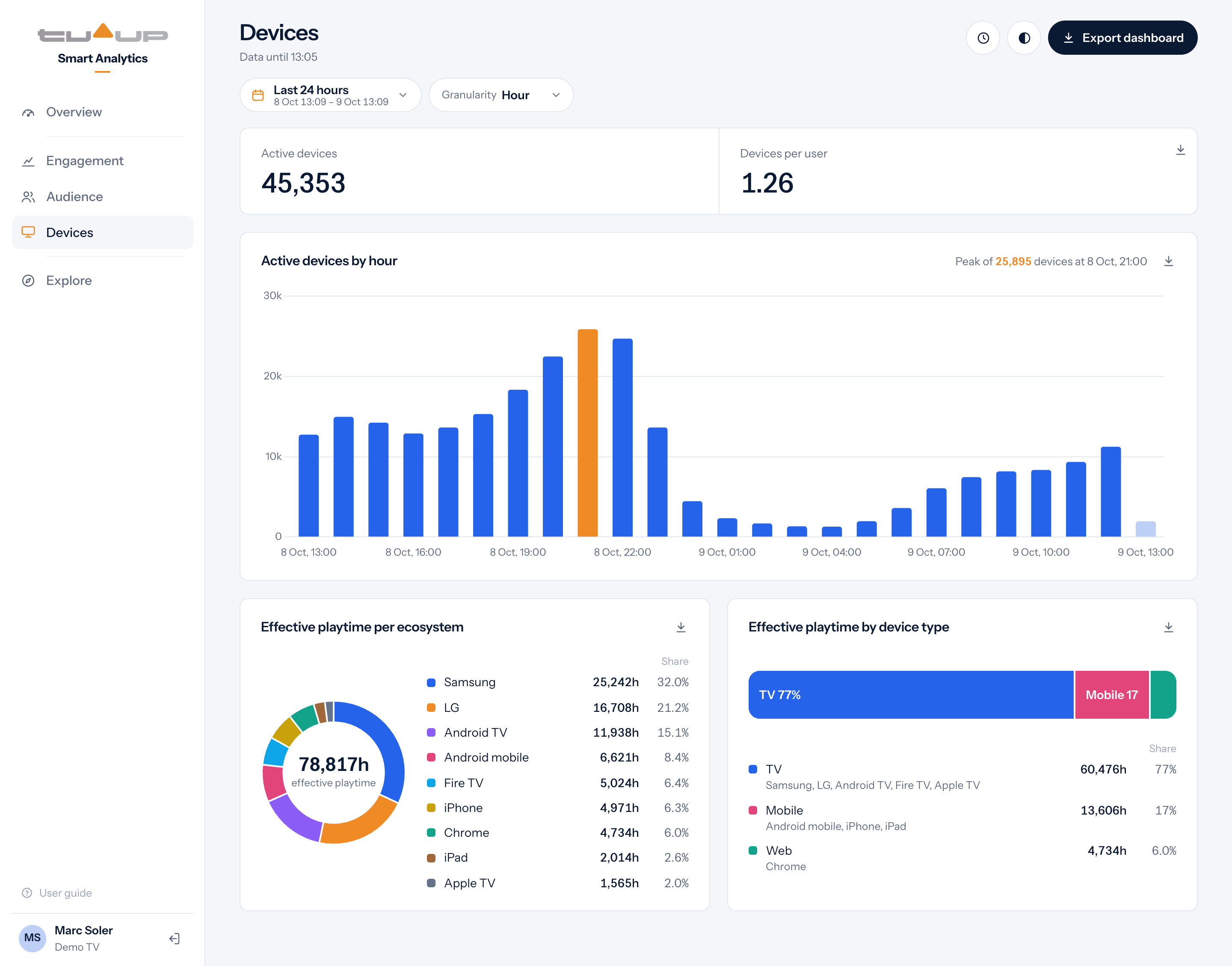
- Active devices: different devices used in the period.
- Devices per user: how many devices each person uses on average.
- Evolution of active devices, with the chosen granularity.
- Effective playtime per ecosystem: how playtime splits among ecosystems, with each one's hours and share.
- Effective playtime by device type: the same grouped into four types: TV (Samsung, LG, Android TV, Fire TV, Apple TV), Mobile (Android mobile, iPhone, iPad), Web (Chrome, web) and Other.
9Explore: build your own query
Explore is the tool for questions that don't have a fixed chart: "how much is each channel watched on Samsung?", "how many users does each app version have?". You choose what to measure, how to break it down and what to filter.
Explore zooms in on what's happening now: it covers the last 15 days, so you can follow day-to-day trends, see what's growing and react while it still matters. Choose Last 15 days to see the whole window, or narrow it down to yesterday, last week or the last few hours. For the bigger picture over months, Overview, Engagement, Audience and Devices cover the full history.
The query bar
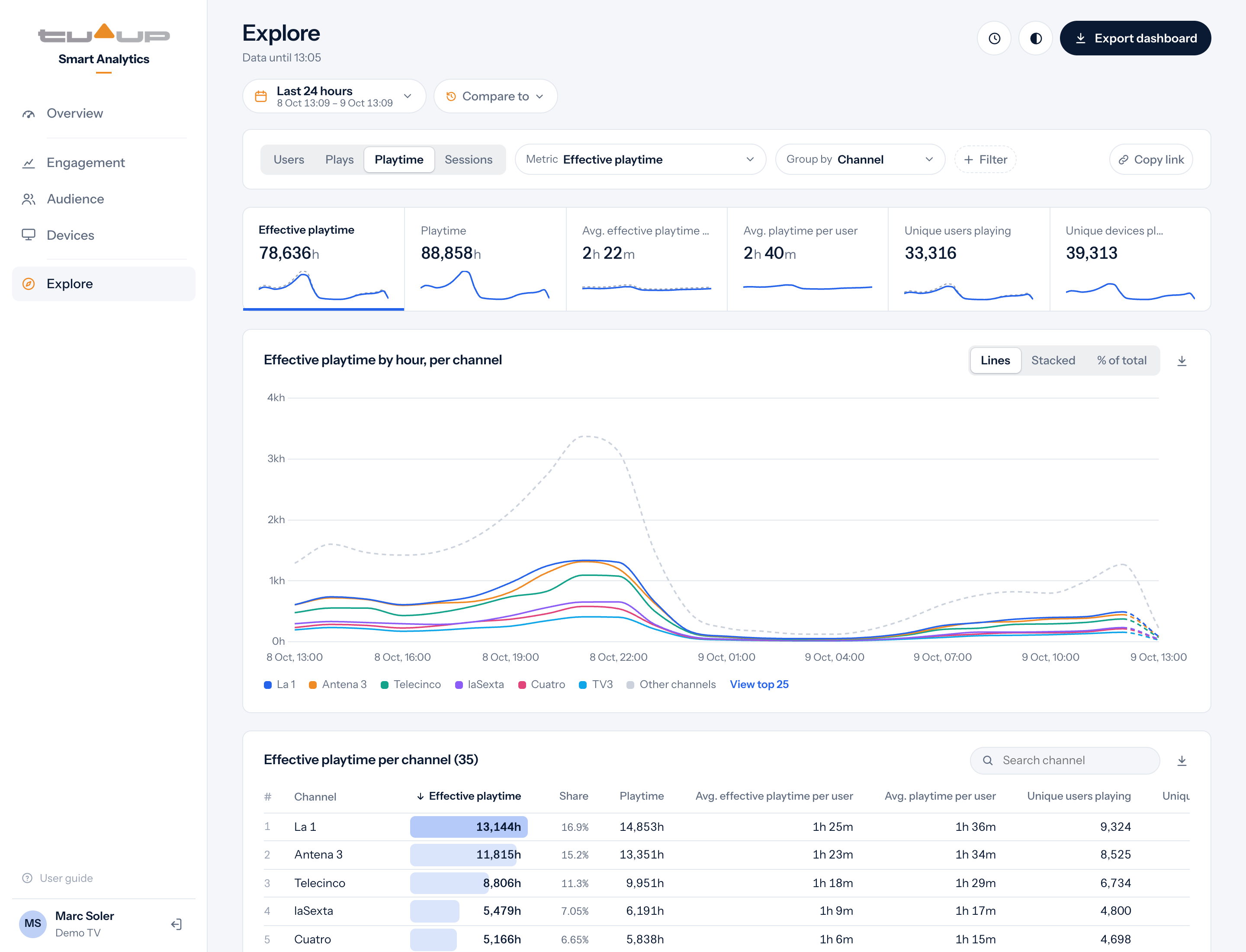
- Family (the first selector): Users, Plays, Playtime or Sessions. It decides which metrics and breakdowns are available.
- Metric: what is measured (for example, effective playtime, active users, average join time).
- Group by: how it's broken down: by channel, show, ecosystem, plan, app version, country, city… Only what the chosen family supports appears.
- + Filter: limits the query to specific values.
Two pairs of metrics not to mix up: in the Plays family, Plays initiated is the same plays figure as in the dashboards, while Plays counts every attempt to play, including those never watched (that's why it's much higher). And Active users (in Users) are everyone who used the app, while Unique users playing (in Playtime) are only those who watched something.
Three ways to count people
Explore counts people in three ways, each from its own family. They answer different questions, so their figures don't match:
- Active users (Users family): everyone who used the app in the period, whether they watched something or not. It's your total reach, the same figure as in the dashboards.
- Users with a session (Sessions family): the people behind the app sessions of the period, that is, the times the app was opened. It sits next to Sessions and Avg. sessions per user, so it tells you how often your audience comes back. It's counted from the sessions, so it's usually a little below Active users.
- Unique users playing (Playtime family): only the people who actually watched something. It's usually the smallest of the three, because not everyone who opens the app presses play, and the gap between it and Active users shows how many visits turn into viewing.
In Users, Active days per user is the same figure as in Overview: on how many days of the period each user came in, on average. It needs a period of 2 days or more, and its evolution is shown by week or month (within a day it's always 1). With Group by it tells which ecosystem, plan or app keeps users coming back more.
Filters
Click + Filter, choose the dimension (for example, Ecosystem), tick one or more values and click Apply. Exclude does the opposite: everything except what's ticked. The list of values is sorted by the main metric and has a search box.
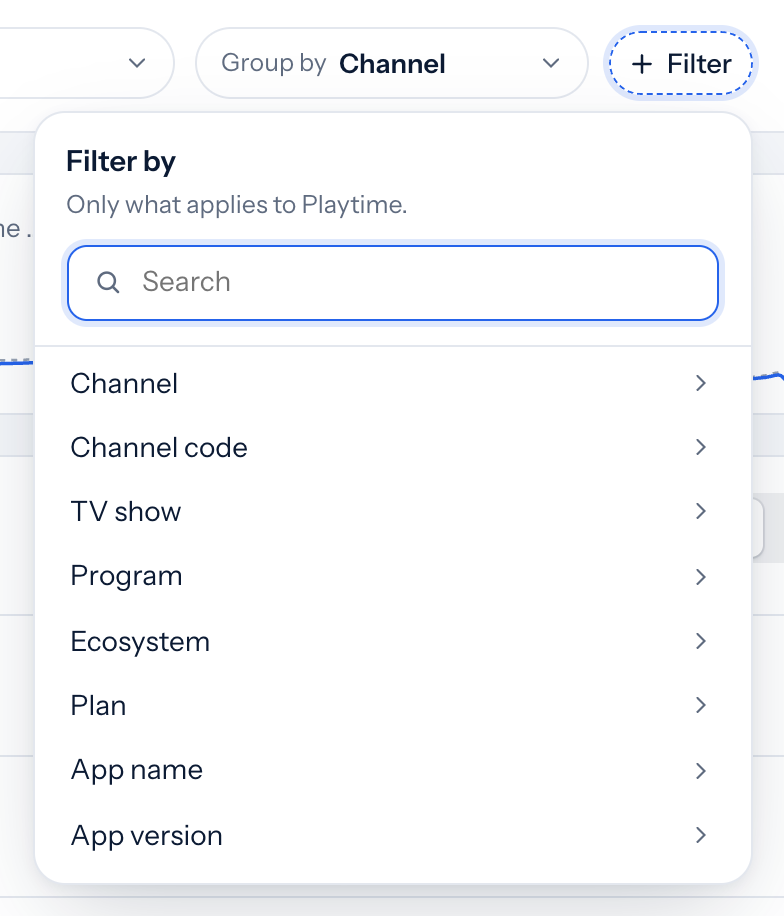
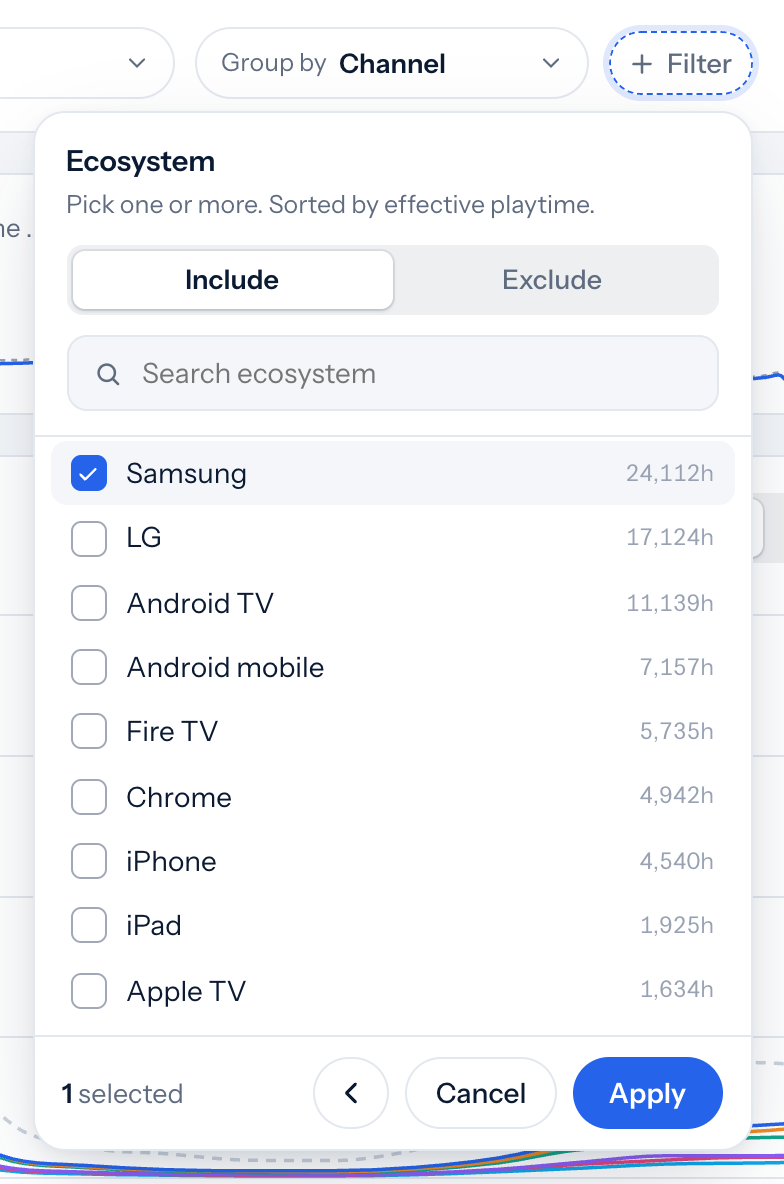
Each filter becomes a tag under the bar: click it to change it or remove it with its X. The red bin removes every filter at once. If you switch to a family that doesn't support a filter, its tag turns grey and isn't applied.
The results
- KPIs: every metric in the family, each with a small chart. Click one to make it the metric.
- Evolution: with Group by, one line for each of the top 6 groups plus "Other" with the rest. View top 25 (or View all) shows every group. Lines, Stacked and % of total change the chart's shape (the last two only for metrics that add up, like playtime).
- Breakdown table: every group with every metric, sortable and with a search box. Clicking a row adds it as a filter.
Comparing with another period
Compare to, next to the dates, adds the change in % under each KPI, in each group's legend and in a Change column in the table, with each row's change in position.
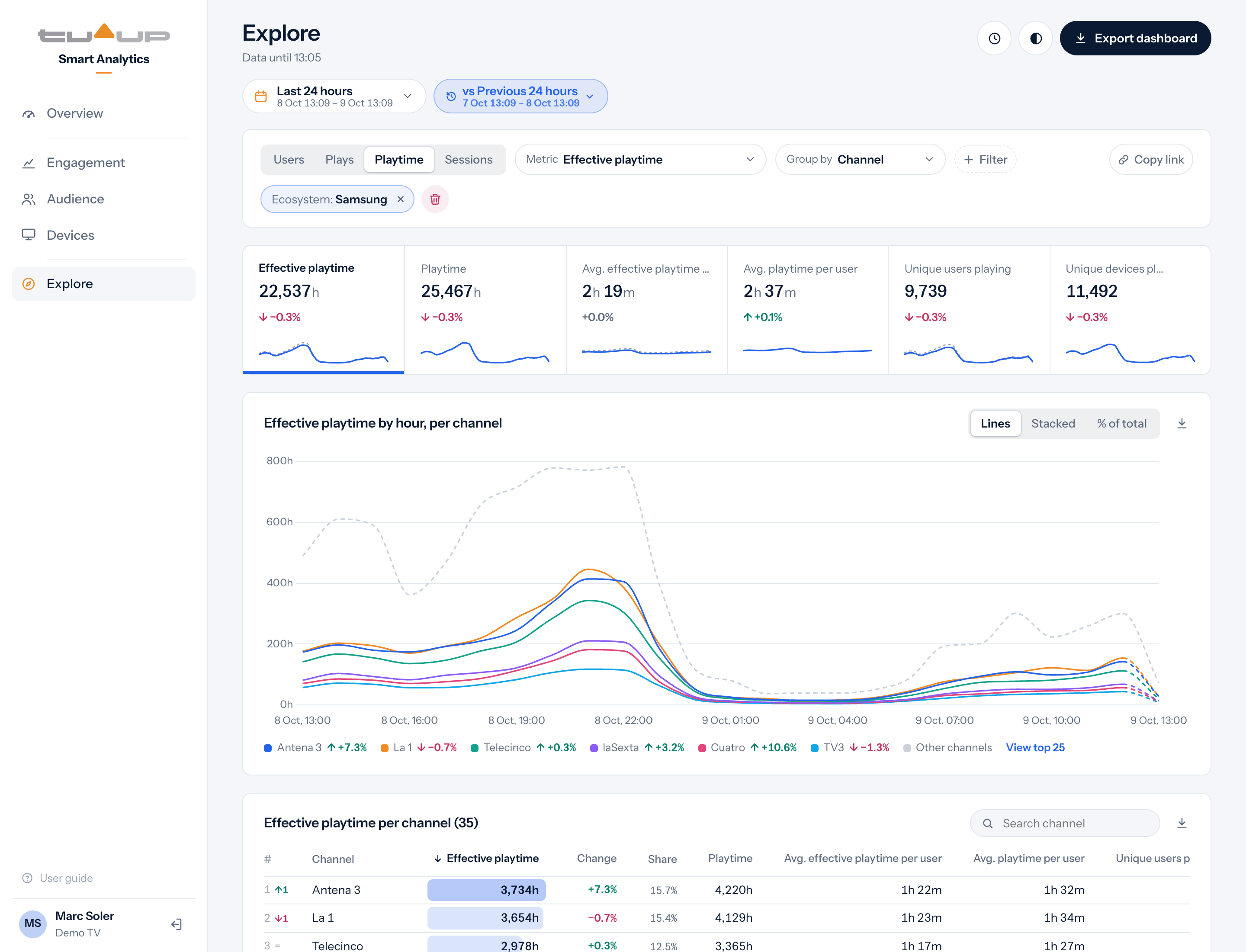
When you leave Explore, the query goes back to its initial state. To keep it or send it to a colleague, click Copy link: the link opens Explore with exactly the same query, filters, dates and comparison.
Users can't be added up across values (one person may use both Samsung and LG). So with a multi-value filter, in some queries user metrics and averages show a dash and a note explains why. Filter a single value to see them.
10Time zone
Times and days are shown in your browser's time zone. To see them in another one (for example, Santiago de Chile's), click the clock at the top right and choose a suggested zone or search for it by city.
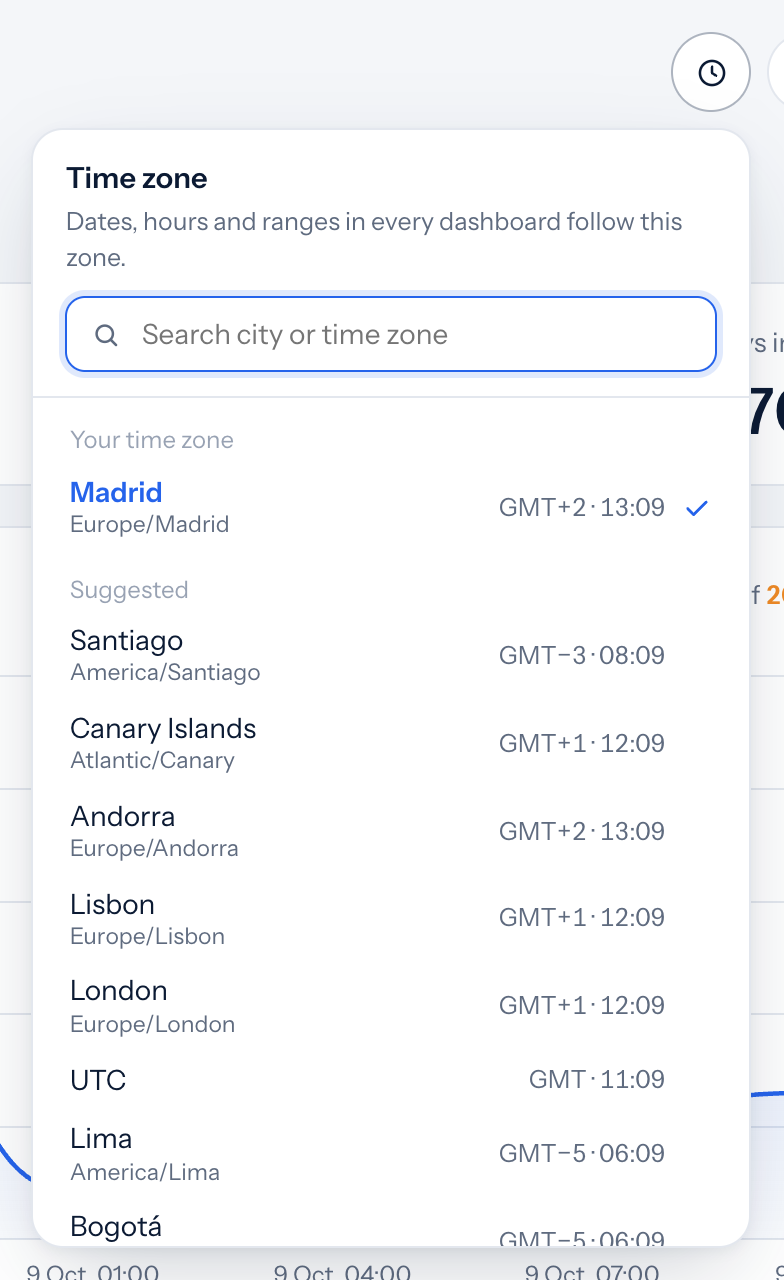
The whole app switches to that zone and the button shows it (for example, "Santiago · GMT−3"). The choice lasts while the tab is open. Weeks always start on Monday.
11Downloading the data
- One block: the down-arrow button on each chart or table downloads only its data.
- The whole screen: Export dashboard downloads every block in the section: in Excel, one sheet per block; in CSV, a single file with one block after another.
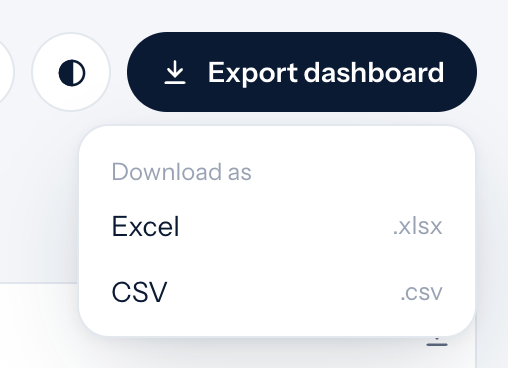
Hovering over the button tells you which data and which period will be downloaded. The files are made for working in Excel:
- Playtime is in seconds, unformatted, so you can add and divide.
- Percentages are numbers (31.28 means 31.28%).
- If a comparison is on, the file includes the other period's values and the change.
- The file name gives the section, the block and the period.
12Dark mode and phones
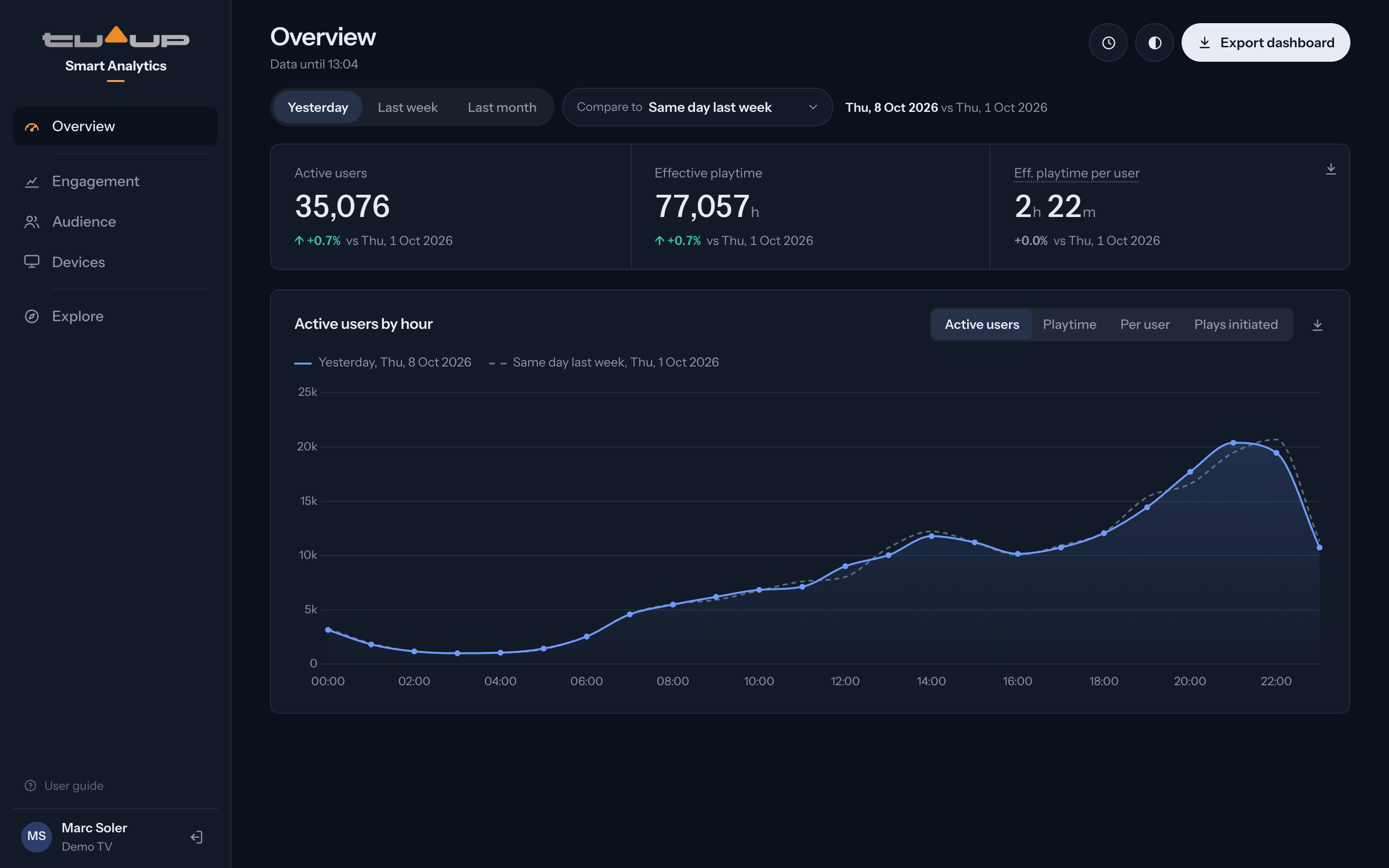
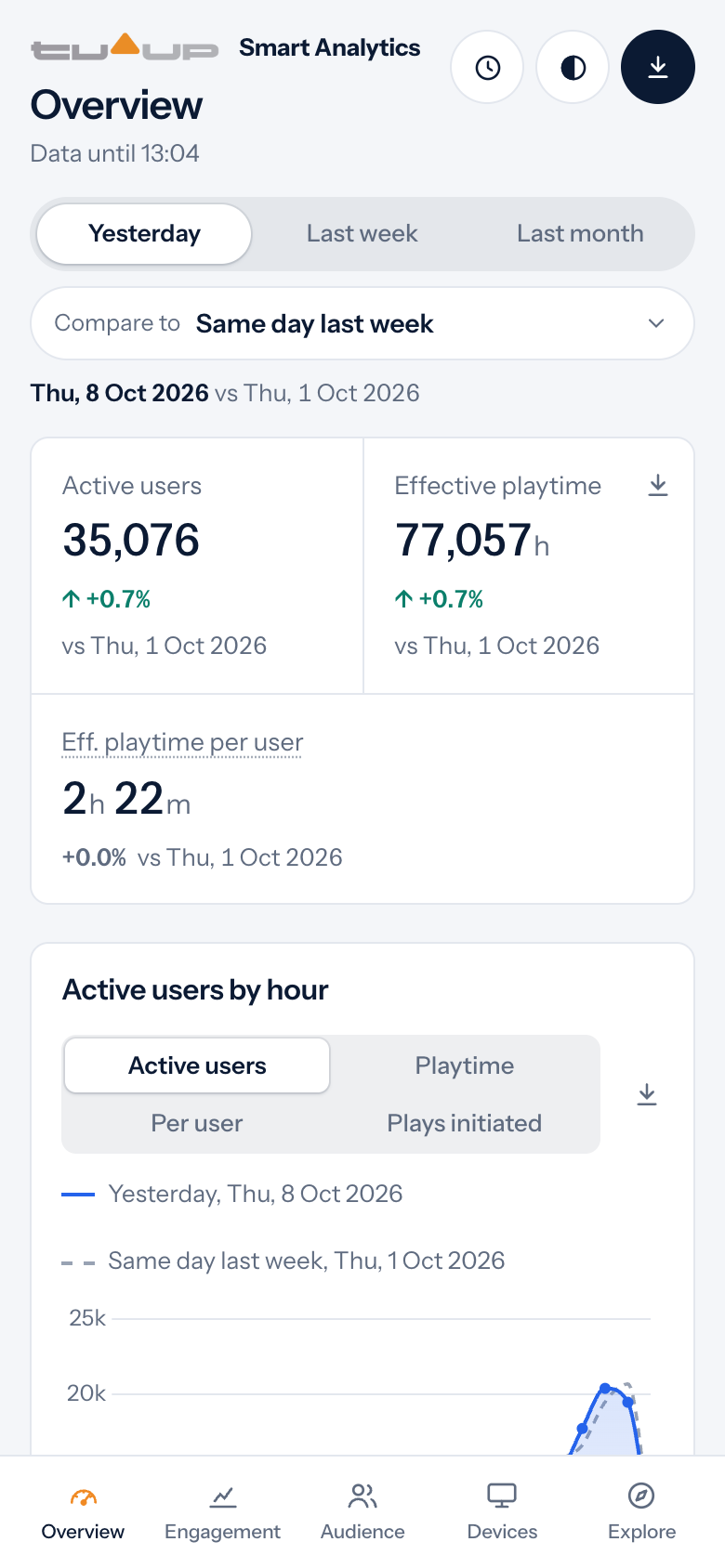
The half-filled circle button at the top right switches between light and dark mode. The app also works on phones and tablets: the menu moves to the bottom and panels open as sheets from the bottom.
13What each metric means
| Metric | What it measures |
|---|---|
| Active users | Different people who used the app in the period, whether they watched something or not. Someone who comes back several times counts once. These are the users in Overview, Engagement (also Daily and Monthly active users) and Explore. |
| Users playing | Different people who watched something on that channel or show (Audience). Fewer than active users: not everyone who comes in watches something. |
| Effective playtime | The viewing time the platform counts as real watching. It's the reference measure of consumption across the whole app ("hours watched"). |
| Playtime | All playback time, including what doesn't count as effective viewing, so it's a bit higher. Only in Explore. |
| Eff. playtime per user | Effective playtime divided by the people who watched something, not by every active user. In Explore it's called Avg. effective playtime per user; Avg. playtime per user is the same with all playback time. |
| Daily eff. playtime per user | Effective playtime of an average day per user who watched something: each day's playtime added up, divided by each day's users who watched something, added up. On the same scale for a day, a week or a month. Only in Overview, for Last week and Last month. |
| Active days per user | On how many days of a week or a month each user came in, on average: each day's active users added up, divided by the period's active users. Someone who comes in on 3 days counts once in the active users and 3 times in that sum, so it can't be worked out by dividing the figures on screen. In Overview, for Last week and Last month, and in Explore, in the Users family. |
| Plays initiated | Plays that really start (effective plays). It's the plays figure across the whole app. |
| Plays | Every attempt to play, including those never watched. Much higher than Plays initiated. Only in Explore. |
| Share | The share: what part of the total each channel or group represents, in %. |
| Change | The change compared with the other period, in %. |
| Active devices | Different devices used in the period. |
| Devices per user | Average number of devices per person. |
| Ecosystem | The type of device or app: Samsung, LG, Android TV, Fire TV, Android mobile, iPhone, iPad, Chrome… |
| TV show | A show with all its episodes added up. |
| Program | A specific episode, as listed in the TV guide. Reruns of the same episode are added together. |
| Avg. join time | How long a play takes to start, on average. Lower is better. (Explore) |
| Sessions | Times the app is opened. (Explore) |
| Users with a session | The people behind the app sessions of the period. Usually a little below Active users. (Explore) |
14Frequently asked questions
Why are today's figures lower?
Because the day isn't over yet. The stretch in progress is lighter or dashed. To compare whole days, use Yesterday or the calendar periods.
If I divide playtime by active users, I don't get the average. Why?
Because Eff. playtime per user only divides by the people who watched something, not by every active user (who include people who came in without watching anything). That's why the average is a bit higher than that division.
Why do users per channel or per ecosystem add up to more than the total?
The same person can watch several channels or use several devices: they count once in each, but only once in the total.
How often is the data updated?
Almost in real time: new data arrives within one or two minutes. Data until, under the title, tells you up to which minute there's data. Playtime by channel and show closes every hour.
I see "No data for this period". Is it an error?
No: there's no activity in that period (or it's before 1 June 2026, when the data starts). Try another period.
Can I share what I see with my team?
Yes, in two ways:
- Send the link. The address in your browser always holds what's on screen: the dashboard, its dates and filters and, in Audience, the tab of the Top 25 and the channel panel if it's open. Copy it and paste it in an e-mail or a chat: whoever opens it sees the same view with the same dates, even days later. A line under the filters tells them so, with Back to live dates to see today's. They need their own access, and see only the data their account allows. The hours are shown in their own time zone. In Explore, Copy link copies that address for you.
- Send the data. Download it as Excel or CSV from the block or with Export dashboard.
Why did "Your session has expired" appear?
Your session expired for security. Click Log in again and log in with your username and password.
Who do I contact if I have questions or something is missing?
Your usual TVUP contact.